Showing posts with label holds. Show all posts

Wednesday, February 18, 2015

Editing Hold Activation Dates

Tired of all of your hold items arriving at the exact same time?  You can avoid this by changing the activation dates for each hold; a feature available through your online Evergreen account.   By changing the activation dates, the hold items can be suspended until the date specified for their reactivation.  This will help to stagger the dates they will arrive at the Library.   


To change an item’s hold activation date, log into your Evergreen account, select the “Holds” tab, and click the “Edit” link for the item. (See example above.)
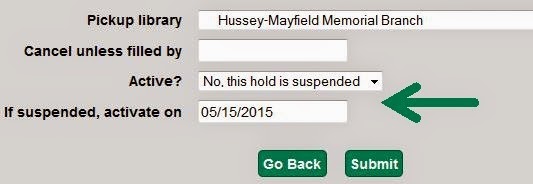


Next to “Active?”, choose to suspend the hold, then enter the desired activation date next to “If suspended, activate on.”  Finally, click the “Submit” button to save the activation date changes.  Congratulations, your hold is now suspended until the chosen activation date!

Leaving town for Spring Break?  Postponing your hold activation dates also helps you avoid the $1 expired hold fee for holds not picked up. Suspending your holds before your vacation means you won't get charged, plus that book you've been waiting for could be ready once you return.

If you need help accessing your online Evergreen account, please contact the Circulation Department at circ@zionsvillelibrary.org or 317-873-8340. 

Wednesday, December 19, 2012

Keeping Your Check Out and Hold History


Do you remember if you've read Grapes of Wrath?  What about Clive Cussler's 3rd book? 
Now, you can keep track!  Follow these simple instructions to start now:

Log in to your library online account.  Go to the Account Preferences tab and then the Search Preferences tab.  You can choose several things in this area: 

      • how many items to appear on a page when searching
      • which library to be your search library  
      • which library to be your pick up location
      • if you would like to keep a history of your items checked out 
      • whether to keep a list of your items on hold

 Check mark one or both of the last two boxes and hit SAVE.


Your history will not appear today, but now that you’ve selected to keep the history, it will start accumulating a record of them from now on. You can then click on the ITEMS CHECKED OUT tab and choose the Check Out History tab.  The HOLDS tab will allow you to see your Holds History.   

This will be a great tool to keep track of your reading!  Have fun!


Wednesday, November 14, 2012

When you take a vacation, make sure your holds do too!


If the book you want to read on the beach hasn’t come in and it’s time to catch your plane, Suspend Your Hold! 
If you have 3 books you’re reading and don’t need another right now, Suspend Your Hold! 

What does this mean, you ask? 
It means you can deactivate your hold request until a future date. Here’s how:

1)  Log in to your online library account from our website using your username and password.  (Haven't set this up yet? Send us an email and we'll get you started!)
2)  Click on the HOLDS tab.
3)  Make sure the box is check marked next to the item you wish to suspend. On the left side of the screen, click on the arrow to the right of Actions for Selected Holds. A drop down menu will appear; choose Suspend, then click GO.

Click on image to enlarge

4)  Click on the Edit button to the right of the suspended item. You will see that the hold is suspended and you can choose the date to reactivate it.  Unless a date is chosen, the hold will be suspended indefinitely.  When finished, click SUBMIT.

Click on image to enlarge

Now, you're set for vacation and you won't miss that book you've been waiting to read!